
Guide
Daily workflows: chatting, grounding answers in your notes, switching study modes, and getting more from every reply.
Chat basics
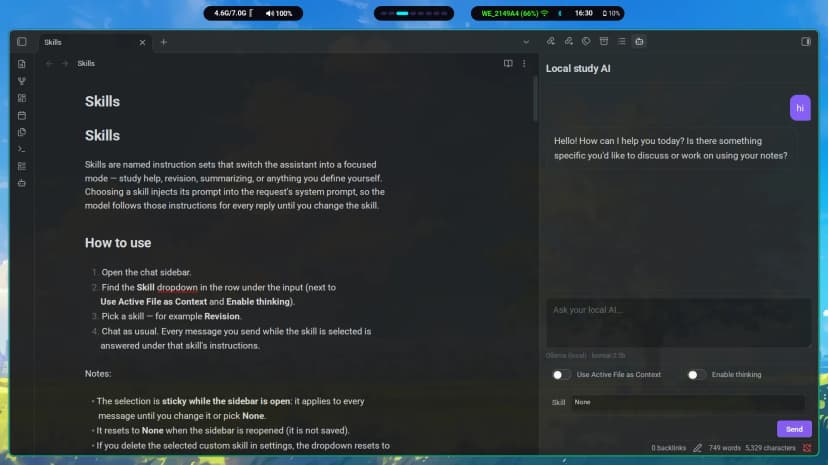
- Open the sidebar with the bot ribbon icon or the
Open local study AIcommand. - Check the
Provider · modelline under the input — it shows exactly what your next message will use. - Type and press Enter to send; Shift+Enter adds a new line.
- While the model works, the input disables and a pulsing
Thinking…shows until the first token. The reply then streams in, and Send becomes Stop. - If streaming is blocked (usually CORS on custom servers), the plugin automatically falls back to a non-streaming request.
- Conversation history is kept in memory until the sidebar reopens or the plugin unloads.
Ground answers in the open note
Turn on Use Active File as Context (the switch under the input) and keep a Markdown note open. Its beginning — up to 20,000 characters — is attached to every request, and the assistant treats it as the primary source when answering questions about that note.
Summarize this lecture note into 5 bullet points and turn point 3 into a quiz question.Letting models think
Enable thinking (Ollama only) lets thinking models reason before answering: slower, but often better for hard problems. The switch is hidden for other providers and stays in sync with the settings tab.
Switch modes with Skills
Pick a mode with the Skill dropdown:
| Skill | Best for |
|---|---|
| Study help | General questions, explanations, and how-to help while studying. |
| Revision | Quizzing yourself, active recall, and exam-style review. |
| Summarize | Condensing long notes into key points. |
| None | No skill focus — the plain study-assistant prompt. |
| Custom skills | Your own modes, created in settings. See the Skills guide. |
The selected skill applies to every message until you change it or select None, and it resets when the sidebar reopens.
Add your own instructions
In Settings → Community plugins → Study Agent, type into Custom instructions. The text is appended to every request after the built-in study-assistant prompt, so preferences like “always answer in bullets” or “explain like I'm 15” apply everywhere. Note: it is sent to your AI provider with your messages.
Copy replies
- Hover any reply to reveal the copy icon.
- Click it to copy the reply's raw Markdown — the partial text while streaming.
- Select part of a reply first to copy just that selection.
How the agent works
Every message is answered under an always-on study-assistant prompt, plus the selected skill, your custom instructions, and the open note when context is on. The request goes to your chosen provider and streams back token by token. Full walkthrough: How the agent works.